





Description
Key Technical Specifications
| Parameter | Value |
|---|---|
| Model | 1TGE120028R0010 |
| Manufacturer | ABB |
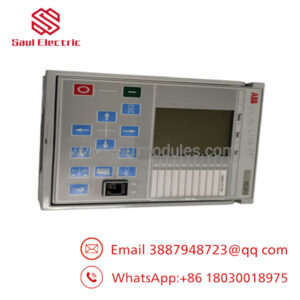
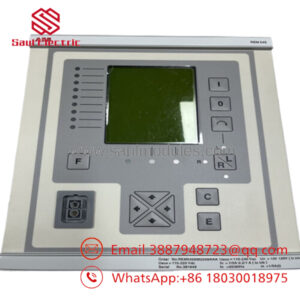
| Product Type | Human Machine Interface (HMI) |
| Series | ABB MView |
| Display | TFT LCD Touchscreen |
| Resolution | Up to 1024 × 768 (hardware version dependent) |
| Power Supply | 24 V DC (±10%) |
| Communication Ports | Ethernet, USB, RS-232/RS-485 |
| Supported Protocols | Modbus TCP, Modbus RTU, Profinet (configuration dependent) |
| Front Protection | IP65 (panel-mounted front) |
| Operating Temperature | Approximately -10 °C to +50 °C |
| Mounting | Panel-mounted HMI |
Compatibility Note: Available market information consistently identifies 1TGE120028R0010 as an ABB MView Human Machine Interface (HMI). Hardware revisions may differ, so verify the display size, firmware version, and project compatibility before ordering or replacing the unit.
Product Introduction
ABB 1TGE120028R0010 is an MView Human Machine Interface designed to provide local visualization, operation, and diagnostics for industrial automation systems. It allows operators to monitor process variables, acknowledge alarms, modify parameters, and interact with PLCs, drives, and control systems through standard industrial communication protocols.
The unit is commonly installed in process plants, machine automation, water treatment facilities, and power applications. During replacement, verify the HMI project file, communication settings, and firmware revision before commissioning. A replacement panel without the correct runtime project will not restore plant operation.
Installation & Configuration Guide
Stage 1: Pre-Installation Preparation (Estimated Time: 10 Minutes)
⚠️ Safety First
- Notify operations of the planned downtime.
- Stop the machine or process safely.
- Apply Lockout/Tagout (LOTO).
- Remove both control and auxiliary power.
- Wait several minutes before disconnecting the HMI.
Tools Required
- ESD wrist strap
- PH1 screwdriver
- Fluke 115 digital multimeter
- USB memory device (if required for project backup)
- Smartphone for documentation
Data Backup
- Back up the HMI application project.
- Save communication parameters.
- Record IP address and subnet settings.
- Photograph all connectors.
- Record firmware and runtime version.
Stage 2: Removing the Old Module (Estimated Time: 10 Minutes)
- Open the control panel.
- Label Ethernet, serial, and USB cables.
- Disconnect communication and power wiring.
- Remove mounting clips.
- Carefully remove the HMI from the panel cutout.
- Inspect connectors and mounting gasket.
⚠️ Keep the original HMI until the replacement has been fully commissioned.
Stage 3: Installing the New Module (Estimated Time: 15 Minutes)
- Wear an ESD wrist strap.
- Verify:
- Model: 1TGE120028R0010
- Matching firmware generation if possible
- Configuration Clone (Critical)
- Restore the original HMI project.
- Configure identical IP address.
- Verify PLC communication driver.
- Restore user accounts and alarm settings.
- Install the HMI into the panel.
- Tighten mounting clips evenly.
- Reconnect all cables.
Self-Checklist
- Correct model verified
- Project downloaded
- Communication configured
- Power wiring confirmed
- Mounting gasket properly seated
Stage 4: Power-On & Testing (Estimated Time: 20–30 Minutes)
Pre-Power Inspection
- Verify 24 V DC supply.
- Check Ethernet and serial wiring.
- Confirm the touchscreen is clean and undamaged.
Power-Up Procedure
- Apply control power.
- Observe the startup sequence.
- Verify the HMI loads the correct runtime project.
- Confirm communication with the PLC or DCS.
- Test alarms, trends, and operator commands.
- Verify historical data logging if enabled.
⚠️ Troubleshooting Note
- Blank screen: Check the 24 V DC supply and display backlight.
- PLC communication error: Verify IP address, protocol settings, and Ethernet switch status.
- Touchscreen offset: Perform touchscreen calibration before returning the system to service.
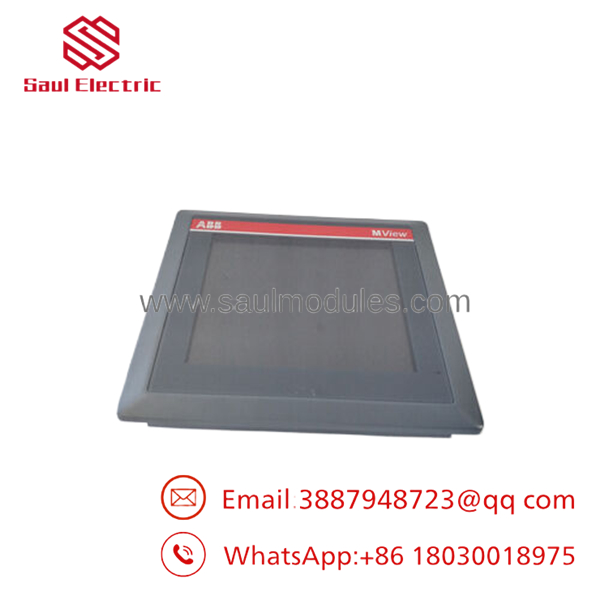
- 1TGE120028R0010
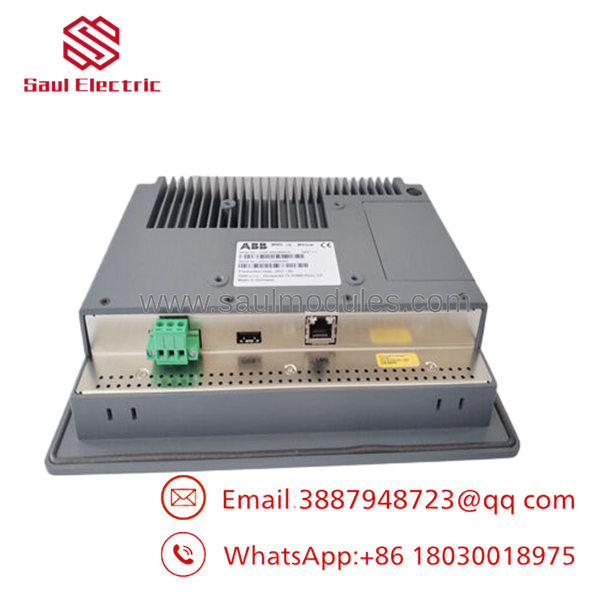
- 1TGE120028R0010
Frequently Asked Questions (FAQ)
Q1. Can the 1TGE120028R0010 be replaced while the machine is running?
No.
Although replacing an HMI does not directly affect the PLC logic, disconnecting it during operation can interrupt operator control and diagnostics. Shut down the system before replacement.
Q2. Will replacing the HMI erase my application?
The hardware does not automatically contain your latest project backup. Before removing the existing panel, upload and save the HMI application if possible. Otherwise, you will need the original engineering project to restore operation.
Q3. Is this model still available?
The 1TGE120028R0010 is primarily available through industrial spare-parts suppliers as New Original, New Surplus, or professionally tested inventory. Availability varies because it is used in legacy ABB installations.
Q4. What should I verify before ordering?
Confirm:
- ABB Part Number (1TGE120028R0010)
- Display size
- Firmware version
- HMI runtime version
- Communication protocol
- Existing project file compatibility
A replacement panel without the correct runtime project will not communicate with the automation system.
Q5. Why are New Surplus units less expensive than factory pricing?
New Surplus units usually come from cancelled projects, excess OEM inventory, or strategic spare-part stock. They are unused but should undergo serial-number verification, display testing, touchscreen calibration, communication testing, and power-on validation before shipment.
Q6. What quality inspections should be completed before shipment?
A thorough inspection should include:
- OEM label and serial number verification
- LCD display inspection for dead pixels or backlight defects
- Touchscreen calibration test
- Ethernet and serial communication verification
- 24-hour power-on burn-in test
- USB interface verification
- ESD-safe packaging
- QC sign-off with inspection records
Test photos and startup videos should be available upon request.
Q7. What is the most common field installation mistake?
Installing the replacement HMI without first backing up the application project.
I’ve seen maintenance teams replace a failed panel only to realize the original HMI contained the only copy of the runtime project. The hardware powered up normally, but the machine couldn’t be operated because the screens, alarms, and communication settings were missing. Before removing any HMI, always upload the project, document the IP configuration, and verify the firmware version. Those steps can save hours—or even days—of recovery time.

 Start Chat


